
Setting Up True Job Costing in QuickBooks Online for Builders, Flippers & Contractors: From Chart of Accounts to Real-Time Project Profitability
Why Class and Location Tracking Isn’t Real Job Costing
Most contractors open QuickBooks Online, turn on Class or Location tracking, and assume they’ve got job costing handled. Tagging a transaction with a class tells you which project the money touched. It doesn’t tell you what the money bought, whether that purchase matches your estimate, or if you’re over/under-spending on labor versus materials.
True job costing in QBO lives at the Items level. Every estimate line, whether that’s framing, rough plumbing, electrical, project management hours needs a corresponding Service, Non-inventory, or Inventory item mapped to the right COGS or Expense account.
When you create a purchase order, bill, or expense transaction, you assign the item and the customer:job (sub-customer). That dual coding is what feeds the Job Profitability Detail report, the Estimates vs. Actuals report, and the Un-billed Costs by Job report. Without items, you’re staring at a bucket of expenses with a project label slapped on the side.
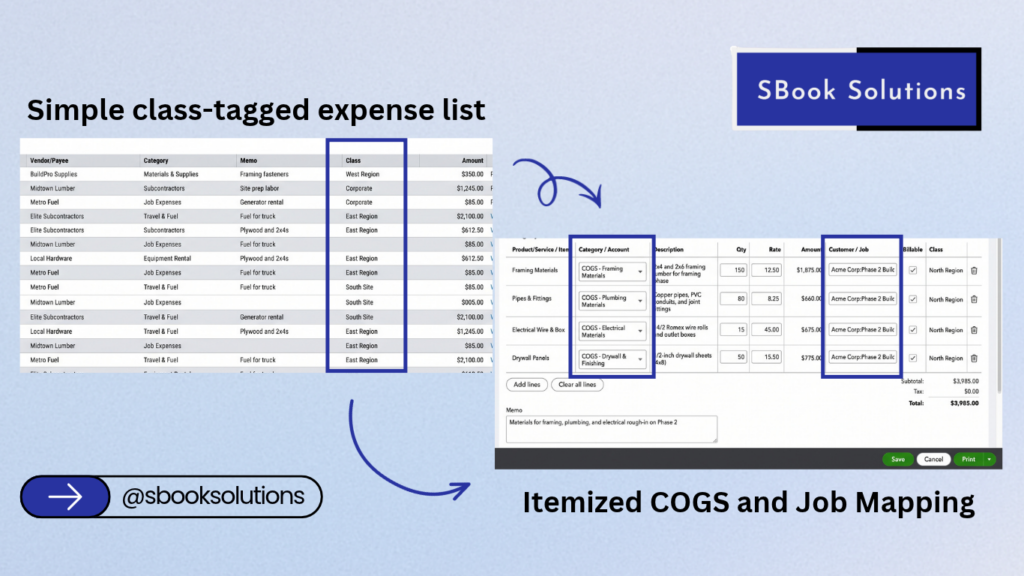
Chart of Accounts & Item List Architecture That Mirrors Your Estimate Template
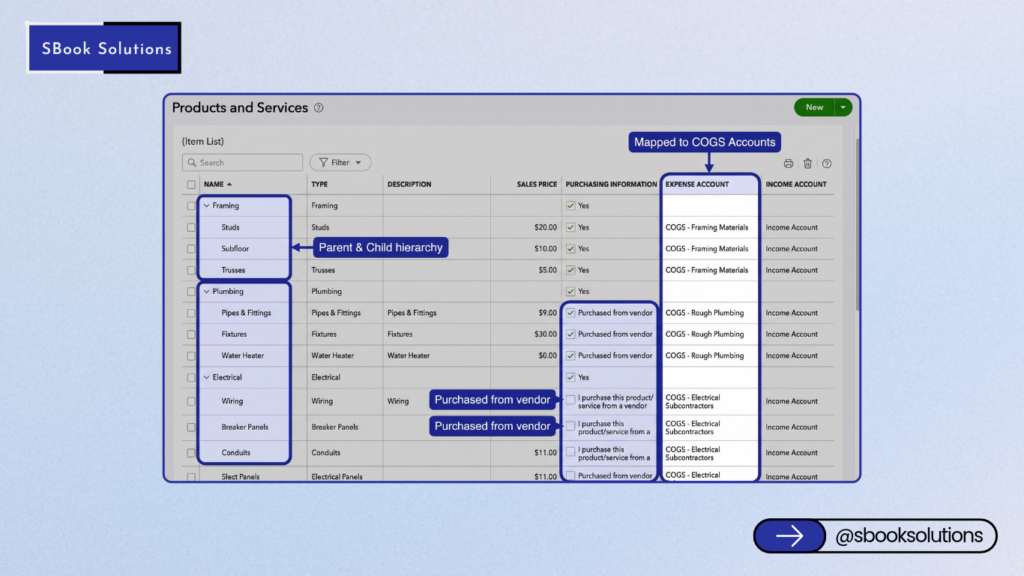
Your Chart of Accounts and your Item List should mirror your estimate template and your draw schedule. If your estimate breaks direct costs into Materials, Labor, Subcontractors, Equipment, and Other Direct Costs, so should your your COGS accounts. Overhead items like insurance, office rent, software subscriptions stay in Operating Expenses, not COGS.
Build the Item List in the same hierarchy. Create parent items for each major trade (e.g., “Framing Package”) and child items for each line (“2×6 Studs,” “Sheathing,” “Framing Labor”). Set each child item a checkbox, assign the correct COGS account, and give it a standard cost if you have one. When you write a purchase order or bill, you pick the child item. The cost posts to the right COGS bucket, the quantity and rate feed the Estimates vs. Actuals report, and the sub-customer assignment ties it to the job. No spreadsheets. No manual reclassification at month-end.
Workflow Automation: Force Job-Level Coding at Point of Entry
The biggest leak in job costing is the two-week lag between a Home Depot run and the bookkeeper guessing which job the receipt belongs to. Fix it at the source. By utilizing QBO’s bank rules, the mobile app’s receipt capture, and third-party tools like Dext Prepare (formerly Receipt Bank) you can assign the sub-customer and item before the transaction ever hits the register.
Set up bank rules for your frequent vendors: Home Depot, Lowe’s, Ferguson, your lumber yard. Condition: Bank text contains “HOME DEPOT.” Action: Assign to “Materials – Direct” COGS account, set the payee, and, critically, add a rule to prompt for the customer:job. QBO can’t auto-pick the job, but the rule drops the transaction into the For Review tab with the account and payee pre-filled. You (or your PM) just select the job from the dropdown and hit Add. For recurring costs — equipment rentals, subcontractor draws, project management fees — create recurring bills or checks with the item and sub-customer baked in. They generate automatically on schedule, already coded.
Reading the Job Profitability Detail & Unbilled Costs by Job Reports
Once items and sub-customers flow through every bill, check, and payroll entry, the Job Profitability Detail report becomes your daily dashboard. You can set it up to see every item: estimated cost, actual cost, estimated revenue, actual revenue, and the variance column. Drill into the Subcontractor section — did the plumber bill for two extra rough-in days you didn’t approve? Drill into Materials — did the framer order 15% more lumber than the takeoff? You catch it while the job is running, not after the fact.
How SBook Solutions Helps You Own Your Numbers
You didn’t start your business to get into the minutia of Item Lists, bank rules, and custom reports.
You started it to build, flip, and manage projects. SBook Solutions sets up the architecture so every dollar lands in the right bucket the first time. We untangle the mess, train your team on the workflow, and hand you a monthly Job Profitability review that fits on one screen. No spreadsheets. No guesswork. Just clear margin visibility on every job, every week.
Ready to turn QuickBooks into your profitability engine? Book a 30-minute discovery call today.